
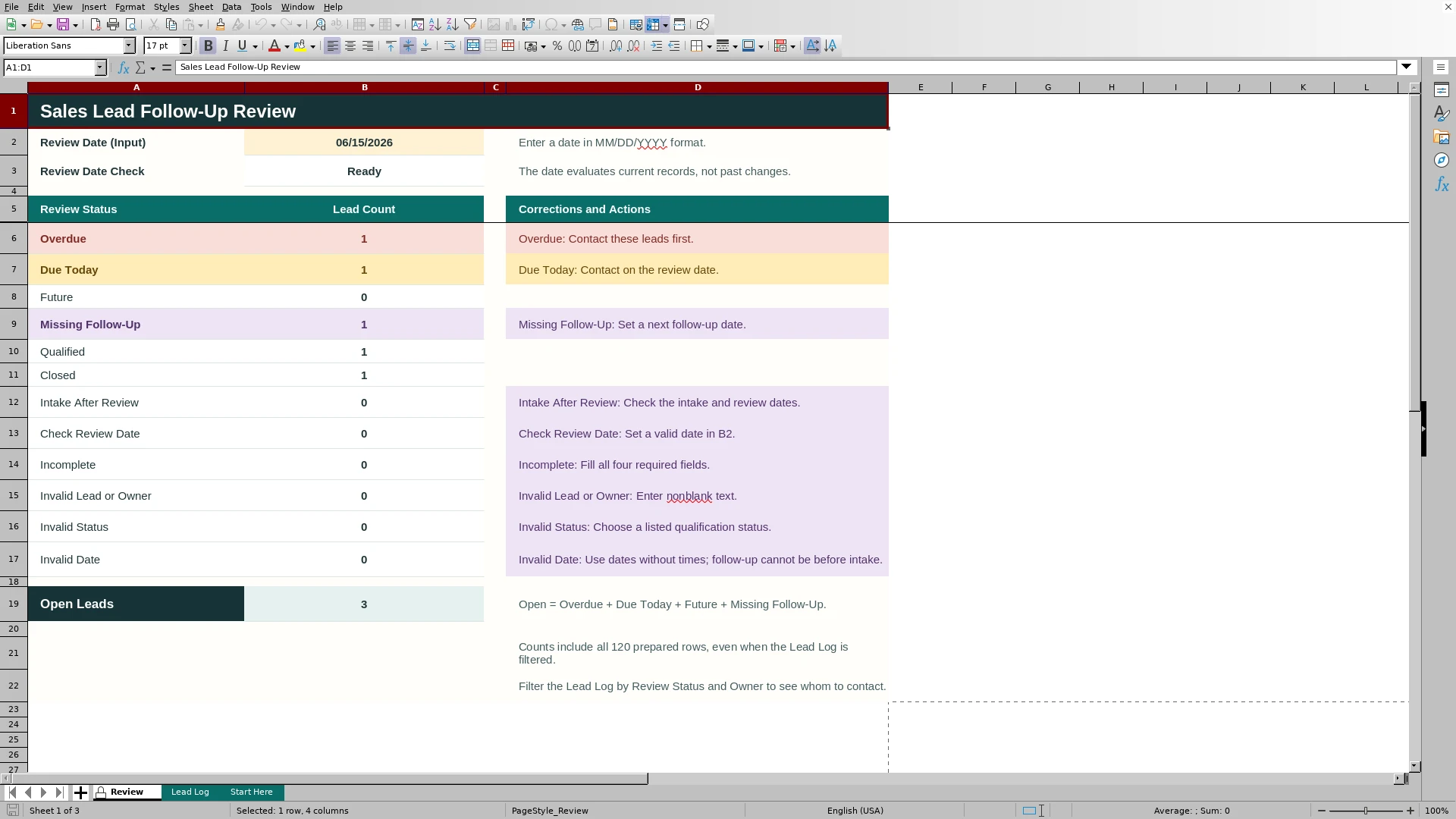
Download the Free Lead Tracking Excel Template
Download the free XLSX directly without registration, then open it in Excel. Start with the fictional example to see how an entered follow-up date becomes a contact decision.
Read the supplied example
On Review, the Review Date in B2 is 06/15/2026. On Lead Log, row 3 records Bramble Supply with an intake date of 06/10/2026, Jordan as owner, Qualifying as its qualification status, and 06/15/2026 as its next follow-up date.
Because the follow-up date matches the review date, Lead Log F3 shows Due Today. Hand the follow-up to Jordan for contact on June 15, after addressing any leads marked Overdue.
Replace the sample inputs and review your leads
- Clear any existing Lead Log filters so you can see the prepared rows.
- Replace the prefilled example inputs with your own: clear or overwrite Lead Log A2:E6. Do not delete the rows or clear column F; leave the formulas intact.
- Enter one lead per row in Lead Log A:E. Supply Lead Name, Intake Date, Owner, and Qualification Status; enter a Next Follow-Up Date when one has been set.
- Enter the review date in Review B2 as MM/DD/YYYY, without a time. Check that Review B3 says Ready.
- Check Overdue first and Due Today next, then filter Lead Log by Review Status and Owner to find the records for contact.
Build a Small Follow-Up Date Check
You can also build a small comparison in a separate workbook to see how a follow-up date relates to a review date. This lesson assumes both dates are valid and filled in; it does not reproduce the download’s qualification rules, warnings, or summary.
Enter the dates and comparison
- Create a sheet named Example. Enter Lead Name in A1, Review Date in B1, Next Follow-Up Date in C1, and Follow-Up Timing in D1.
- Enter Maple Works in A2, 06/15/2026 in B2, and 06/15/2026 in C2. Enter the dates as calendar dates rather than text.
- In D2, enter the formula below. It compares the follow-up date with the review date and returns Overdue, Due Today, or Future.
D2:
=IF(C2<B2,"Overdue",IF(C2=B2,"Due Today","Future"))With both dates set to June 15, D2 returns Due Today. That tells you the fictional lead is scheduled for contact on the review date.
Change the follow-up date
Change C2 to 06/16/2026, leaving B2 at 06/15/2026. D2 returns Future because the next follow-up is one day after the review date; the next action is to wait until the scheduled date or deliberately choose another date.
If C2 is instead 06/14/2026, the result is Overdue. Use the full template when you also need an owner, a qualification decision, and checks for missing or invalid inputs.
Map an Existing Lead List Into the Log
Before transferring a list, match each source field to the prepared columns. A source list may use different labels, so check the meaning of each field rather than relying on its position.
Match source fields to input columns
| Source information | Lead Log field | Entry decision |
|---|---|---|
| Company or lead name | A: Lead Name | Enter nonblank text identifying the lead. |
| Date received | B: Intake Date | Enter a calendar date without a time. |
| Assigned representative | C: Owner | Enter the responsible person’s name as text. |
| Qualification progress | D: Qualification Status | Choose a listed status that reflects the current decision. |
| Next planned contact | E: Next Follow-Up Date | Enter a date on or after intake, or leave it blank if not yet set. |
For example, a fictional record for Northline Goods received on 06/12/2026 and assigned to Elena can be entered with New if outreach has not started. If the source uses a label such as “working,” decide whether New, Contacted, or Qualifying accurately describes the record before entering it.
Fit the list into the prepared rows
Lead Name, Intake Date, Owner, and Qualification Status are required. The next follow-up date is optional, but an active lead without one needs a scheduling decision.
Keep pasted source data within A:E: pasting over column F would replace the calculated Review Status. The prepared area covers rows 2–121, or up to 120 leads, so check the number of records before transferring a list.
For a returning lead already in the log, update its existing row rather than adding another. That keeps the current owner and next action together and avoids treating one lead as two separate follow-ups.
Choose Qualification Status and Set the Next Date
Qualification Status describes the lead’s progress; Next Follow-Up Date schedules the next contact. Changing the stage does not set that date, so make both decisions when you update an active record.
Decide whether qualification is still active
- New: Use before outreach has begun.
- Contacted: Use after outreach has occurred.
- Qualifying: Use while the team is assessing fit.
- Qualified: Use when the lead meets the team’s qualification criteria.
- Closed: Use when the team is not pursuing the lead.
Schedule the next follow-up separately
In the supplied log, Cedar Label is New, its Next Follow-Up Date in E4 is blank, and F4 shows Missing Follow-Up. If outreach has not begun, keep the appropriate active status and enter a realistic next date in E4 so the lead can be reviewed against that date.
By contrast, the supplied Driftwood Office record is Qualified and Elm Packaging is Closed. For valid records received on or before the review date, those terminal statuses leave the active follow-up queue even if a follow-up date remains entered.
If a qualified lead requires work beyond this register, communicate that decision through your team’s chosen handoff process rather than treating the sheet as an opportunity pipeline.
Run a Recurring Follow-Up Review
At the start of a review, enter the date you are evaluating in Review B2 and confirm that the date check says Ready.
Review the current date and priorities
Suppose a fictional Harbor Carton record has an intake date of 06/10/2026, Elena as owner, Contacted as its qualification status, and 06/13/2026 as its next follow-up date. With Review B2 set to 06/15/2026, its follow-up is before the review date, so the record is Overdue.
Check Overdue leads first, then Due Today leads. Future means the entered follow-up is later than the review date; Missing Follow-Up means an active lead has no next date and needs one assigned.
Open Leads on Review counts leads in those four categories: Overdue, Due Today, Future, and Missing Follow-Up. It is a count of records, not a conversion rate or a forecast, and it excludes terminal and flagged records from that total.
Give each owner a workable list
On Lead Log, filter Review Status to the category you are working on and filter Owner to the person responsible. For Harbor Carton, select Overdue and Elena to locate the record for her review.
The Review counts still cover all 120 prepared rows even when a filter hides some of them. Use the filtered log to identify individual contacts, not to interpret the summary as an owner-specific count.
Update the lead after contact
Suppose Elena contacts Harbor Carton and agrees to follow up on 06/18/2026. Keep its Contacted status and enter that date in the existing row’s Next Follow-Up Date field, with Review B2 still set to 06/15/2026.
The row becomes Future because June 18 is after the review date. Reapply the filters and it no longer belongs in Elena’s Overdue list; it remains an active lead with a later scheduled contact.
After other contacts, enter the next agreed date or change the qualification status if the conversation supports a different decision. Check Missing Follow-Up separately before ending the review so active records without a scheduled next step are not overlooked.
Correct a Flagged Lead or Review Date
If a lead is not in the expected queue, check Review B3 and then the row’s Review Status. A warning identifies an input to correct rather than a contact priority.
Restore a valid review date
A blank Review B2 prompts you to enter a review date; an invalid value prompts you to correct it. Until the date is valid, date-dependent counts are unavailable and Open Leads asks for a valid review date.
For the date-dependent categories, a blank count is not the same as zero: a zero under a valid review date means no records were counted in that category. Warning counts can still show zero or a positive number before the review date is fixed, even though Open Leads remains unavailable.
Enter a calendar date without a time, then check the summary again.
Fix the first issue shown on the lead
| Review Status | What to check |
|---|---|
| Check Review Date | Enter a valid date in Review B2. |
| Incomplete | Fill the lead name, intake date, owner, and qualification status. |
| Invalid Lead or Owner | Enter text containing at least one non-space character for each field. |
| Invalid Status | Select one of the listed qualification statuses. |
| Invalid Date | Use valid whole dates without times; the follow-up cannot be before intake. |
| Intake After Review | Check the intake and review dates to confirm which date is intended. |
Clear a date cell when no date has been set; zero is not a blank date. A row displays its first issue, so read its status again after each correction in case another input also needs attention.
An entirely empty prepared row stays blank and is not an open lead. A partially entered row can instead be flagged, so complete or correct it before relying on the queue.
Save a Current-State Record for Reuse
When you need to retain a review, save a dated copy of the full XLSX, then continue making current updates in your working file. The copy preserves the entries as they stood when you saved it.
Save the review as a dated copy
For a June 15 review, confirm that Review B2 is set to 06/15/2026 and save the copy under a distinct filename such as Lead-Review-2026-06-15.xlsx. The copy gives the team a record of the lead names, owners, statuses, and dates present at that point.
When another review needs to be retained, save another dated copy so the earlier record is not overwritten.
Choose the saved record or the working file
Suppose a lead is reassigned on 06/22/2026. Changing the working file’s Review B2 back to 06/15/2026 compares the current record with that date; it does not restore the owner or qualification status that existed on June 15.
Consult the saved June 15 copy for the earlier state and the working file for current follow-ups. This register does not maintain a follow-up history, opportunity stages, or revenue forecasts, so retain any separate records your handoff process requires.
Questions about this template
What information do I need to enter for each sales lead?
Enter a lead name, intake date, owner, and qualification status. Add a next follow-up date when one has been scheduled; an active lead without one is identified as Missing Follow-Up.
How do I see which lead follow-ups are overdue?
Set a valid date on Review, then filter Lead Log by the Overdue Review Status. Those active leads have a next follow-up date before the selected review date.
Can I track leads that have already been qualified or closed?
Yes. Keep their records in Lead Log and select Qualified or Closed as appropriate; valid terminal records received by the review date are excluded from the active follow-up total.
How many leads can this Excel template hold?
The prepared Lead Log has 120 lead rows, from row 2 through row 121. Its review counts cover that prepared range.
Does changing the review date show my lead list as it was in the past?
No. The selected date evaluates the records currently in the workbook; it does not restore earlier owners or qualification statuses. Save a dated copy when you need to retain a review.

Tessa Bramwell writes Excel template guides for lead intake, follow-up dates, and sales forecasting. Her guides show which records go into each workbook and how to check the counts before using a report.
Profile and guides →
Dorian Ashcombe writes Excel template guides for campaign planning, on-page SEO tasks, and results reporting. His guides explain how to group rows by URL or reporting period and check what is still outstanding.
Profile and guides →